
Table of Contents
Creating a Charity
-
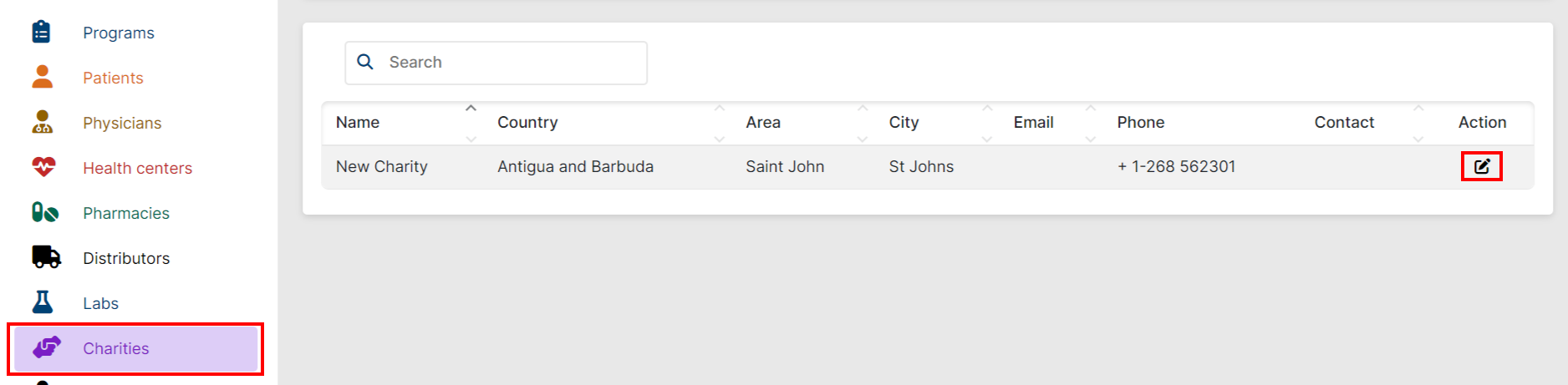
Navigate to Charity
-
Add a new Charity
-
Complete name of the Charity
-
Charity location: country, area, address, city, zip code (if applicable)
-
Charity contact info: name, email address, phone number – make sure to select the appropriate country code
-
Eligibility criteria – Explain what are the criteria that a Patient must fulfill to be supported by this Charity
-
Notes – Any other useful information
-
Upload the Memorandum of Understanding (MOU) and any other document – if an MOU is not needed for your Program, you may upload this PDF
Account Creation
-
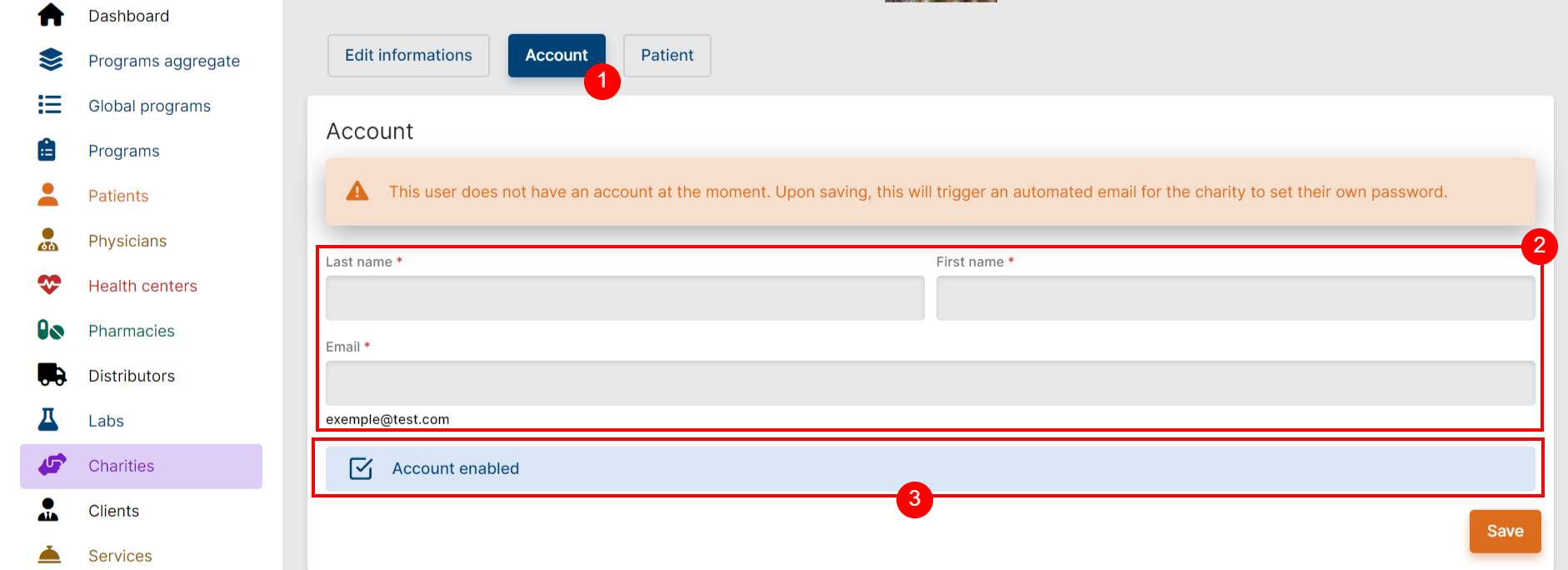
Navigate to Charity > Account
-
Enter the Charity contact's first name, last name, and email
-
Make sure the checkbox “Account enabled”
-
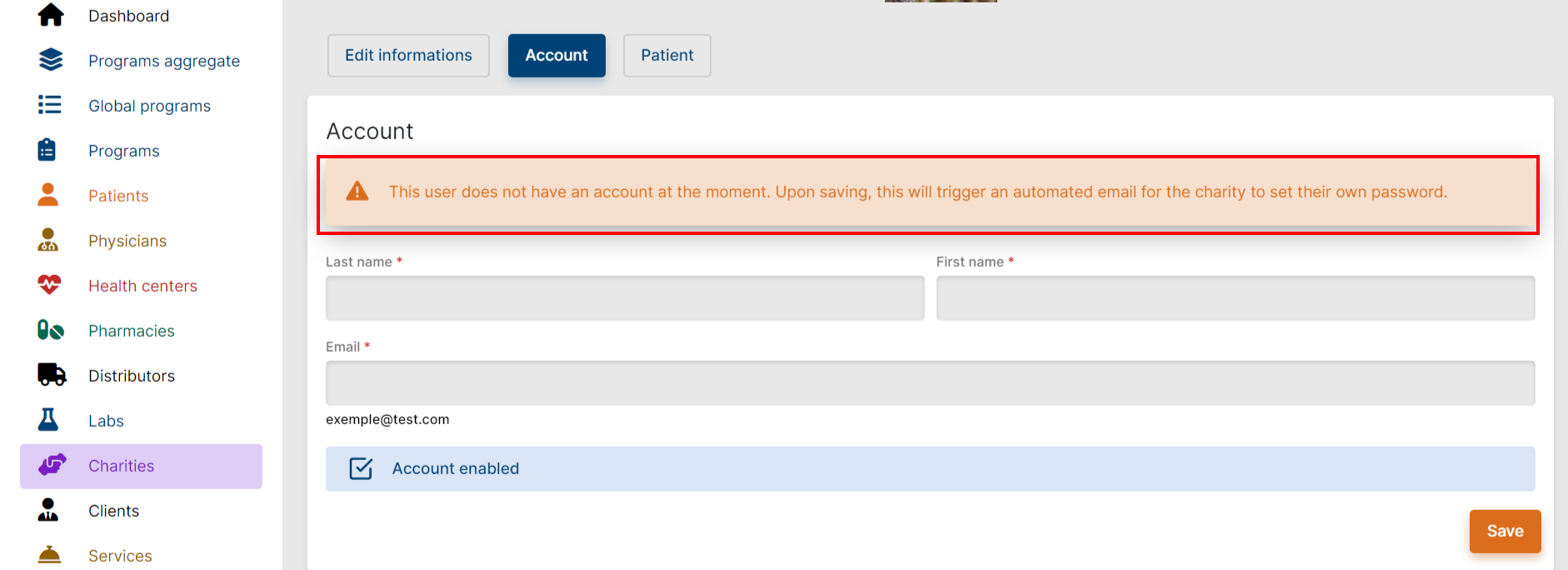
If the red disclaimer “This user does not have…” displays, then the Charity’s account is not enabled, and no email will be sent to set their password.
-
-
Save
Once the Charity’s account is enabled, the PMS will automatically send an email to them for them to set their own password. Once Charities have set their own password, they can log into the Platform. Their username will be their email address, and their password the one they have just set.
 IMPORTANT
Note that the Charity is also consenting to Axios Privacy Policy by signing in to the Platform.
Reset the Charity’s password
If a Charity ever forgets their password, they can avail of the “Forget Password” button on the landing screen of the Platform. This will trigger an automatic email to reset the password.
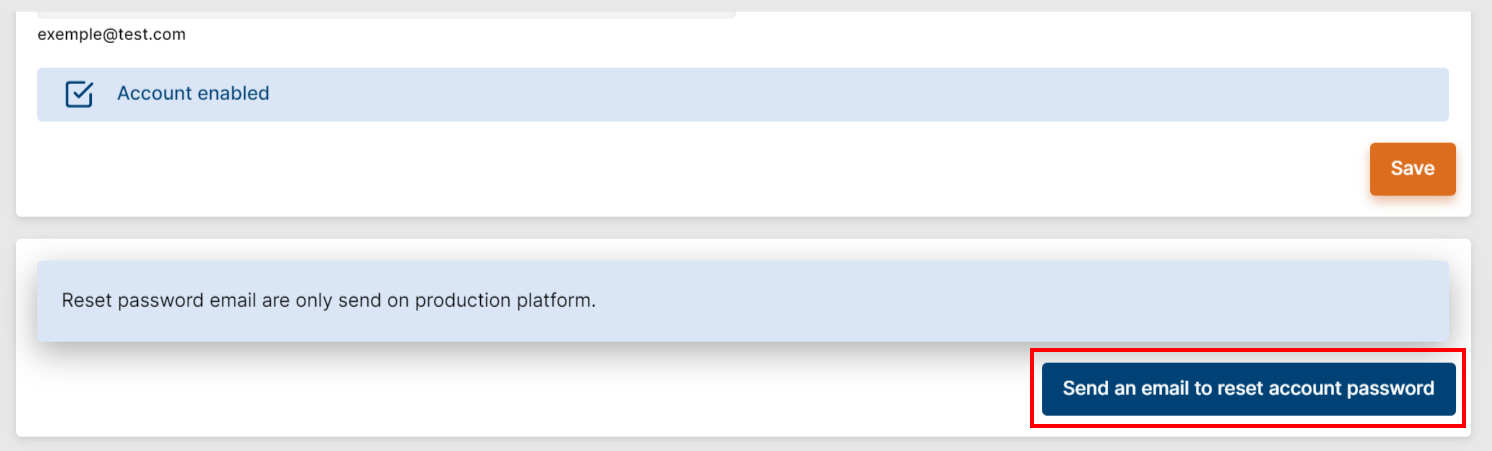
Alternatively, Axios can trigger an automatic email from the Charity’s Account tab in the PMS or generate a password reset link that can be shared with the user.
IMPORTANT
The link in the reset email is only valid for one hour.
After that delay is passed, a new reset email will be needed.
 Good to Know
A Charity can only have one email address associated with its account.
In case the Charity must change the email account to use the app, please contact pms.support@axiosint.com to assist with the change.
 Going Further
Learn more about how to apply to a charity for your patient in the Applying to a Charity article.