
Table of Contents
Submitting an Interaction Log for review
Validating/Reverting an Interaction Log
Recording an Interaction Log
Part of our work is to record all interaction we have with Patients. To do so, you can record a new entry in your Patient’s Interaction log to keep notes of every exchange you have had with them:
-
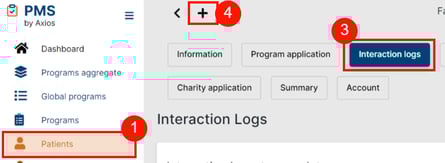
Navigate to Patients
-
Manage/Edit your Patient
-
Open the Interactions Log tab
Systemic interactions such as the exchanges during the Patient application or through the release of the medications are automatically reported in the log. -
Any follow-up that you initiate, or any contact initiated by the Patients MUST be logged. You can create a new report by clicking on the + icon:
Adverse Event follow-ups MUST also be recorded in the interaction log.
 IMPORTANT
Once an interaction is validated, only a Project Leader can edit the content.
Submitting an Interaction Log for review
Once the interaction has been completed, you should run a complete Quality Check on the interaction content (report and supporting documents) to make sure that it is complete and accurate, and check the This interaction is ready for review checkbox.
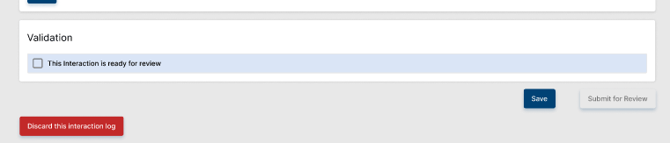
After checking this box, you will now be able to submit the interaction for review.
- Submitting the interaction for review will trigger an additional check from the system, asking you to confirm the submission.
- Upon submission and confirmation, the corresponding interaction will now be marked as "Under Review", and the content cannot be updated anymore.
Note: Saving the interaction will only save changes made to the interaction and will not trigger submission for review.
Note: The Selected Contact Method requires the corresponding document in order for successful validation. Contact Methods and their corresponding documents are listed below:
|
Selected Contact Method |
Corresponding Document(s) |
|
|
Document upload |
|
Phone |
Date and Time picker, phone number |
|
In person |
Appointment Invite |
|
Virtual |
Meeting link or invite |
|
Fax |
Document upload |
Validating/Reverting an Interaction Log
For Interactions marked as "Under Review", users with Supervisor access will run a second complete Quality Check on the interaction content to confirm that it is complete and accurate.
For interaction logs with complete and correct content
To validate an interaction, a program supervisor needs to check the Validation checkbox. After checking this box, they will now be able to validate the interaction. Upon saving, the system will trigger an additional check to confirm the validation.
- Upon confirmation, the corresponding interaction will now be marked as "Validated", and the content cannot be updated anymore.

For interaction logs with incomplete and/or incorrect content
To revert an interaction, a program supervisor needs to click the "Revert to Active" button at the bottom of the page.
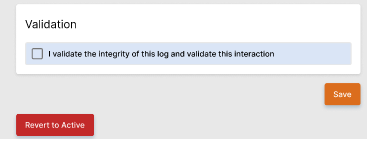
After clicking this button, user will need to select a reason for reverting.
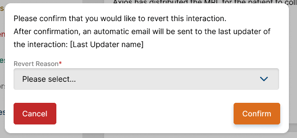
Upon confirmation, an automated email will be sent to the submitter/last updater of the interaction, and the interaction will return to "Active" status. Additionally:
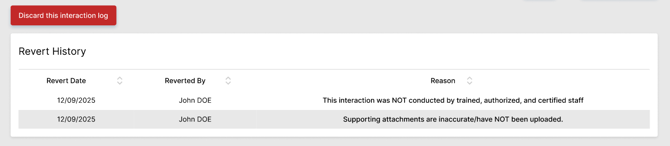
- A Revert History table will display underneath the interaction, allowing all users to view the number of times the interaction has been reverted as well as the reasons for each Revert
- Similarly, a table will display on the Dashboard in the "Interaction Logs" group named “Interactions to resubmit”. This table will be located at the top of the IL group and will display all interaction logs that have been reverted to Active status.
- If no interactions have been reverted to Active status, this table will not display.
Note: Program Supervisors who submit interaction logs will need to reach out to their Program Manager to validate their own submitted interactions. If the Program Manager is unavailable, please reach out to PMS Support.
Reporting an Adverse Event
 WARNING
The Adverse Event reporting process in the PMS has evolved. The new process is describe below.
-
Create an Interaction Log.
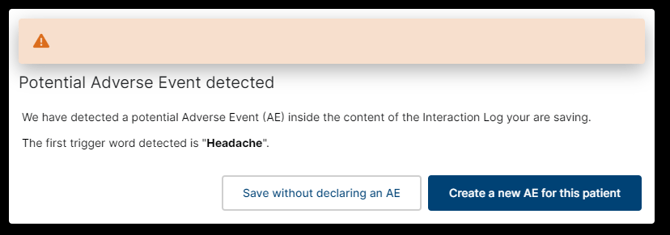
- Depending on the content of the interaction, an automated popup will appear, stating that a potential Adverse Event has been detected in the content. Click the "Create a new AE for this patient" button. Important Note: make sure to fill the description field fully before creating the Adverse Event, as it will not be editable anymore.
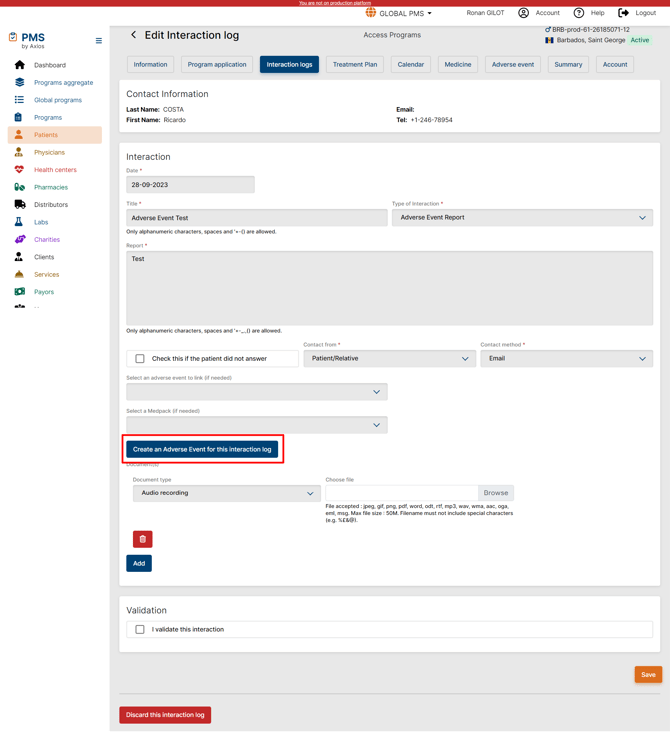
- Alternatively, you can manually create the Adverse Event from the IL. You have to save the IL first. Then you will be able, while editing the IL, to click the "Create an Adverse Event for this Interaction Log" button to create the related AE.
- Once on the Adverse Event page, record all relevant information and save. Note that two documents are mandatory to be uploaded to be able to save (Email from Axios to Client, Adverse Event report form, other).
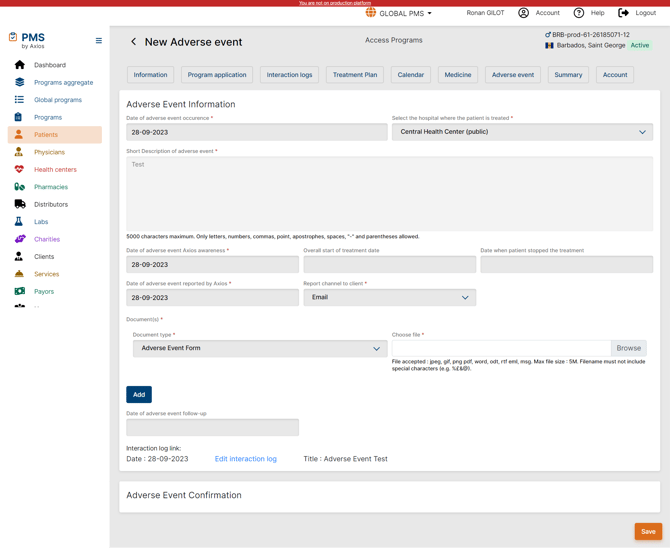
- The saved AE will become accessible through the Adverse Event tab. All fields, except the description, remain editable until the AE is closed ("processing"status).
- Upon saving, an email will be sent to the assigned Program Manager informing them of the AE creation.
- To close an AE, all confirmation information must be provided along with the mandatory upload of the Email Confirmation document from Client.
IMPORTANT
The description fields in the AE are based on what has been saved in the Interaction Log and cannot be updated. Make sure to enter the full description of the Adverse Event as soon as you record the interaction.
IMPORTANT
Once an Adverse Event is completed, only a Project Leader can edit the content.
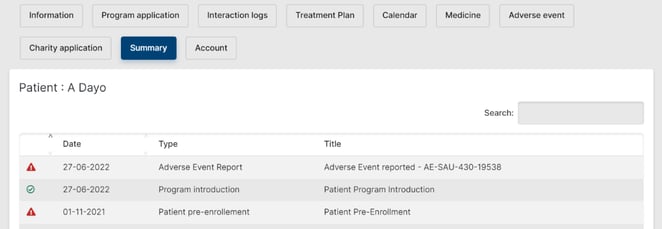
Patient Summary
The Patient summary is a quick snapshot at the Patient journey through the Program. It highlights key dates and events. It combines the Patient’s application and the subsequent interactions with other events such as document release.
 Going Further
Adverse Events must be reconciled on a monthly basis. To learn more about Adverse Events reconciliation, make sure to check the Adverse Events Reconciliation article.