
Table of Contents
What are Lab Procedure Reconciliations?
A dedicated space in PMS, allowing teams to track, validate, and confirm all lab-related procedures in one streamlined workflow.
Nestled under Lab > Edit, in the new Procedure Reconciliation tab, this addition allows users to:
-
Add and manage procedure reconciliations by selecting the relevant Program and month.
-
Track progress through clearly defined statuses — from Draft to Paid, each step reflecting a specific milestone in the reconciliation and invoicing cycle.
-
Upload and manage key documents like Lab Confirmations, Invoices, and Debit Advises directly in PMS.
-
Export data in CSV or PDF formats for reporting or financial reference.
Getting Started
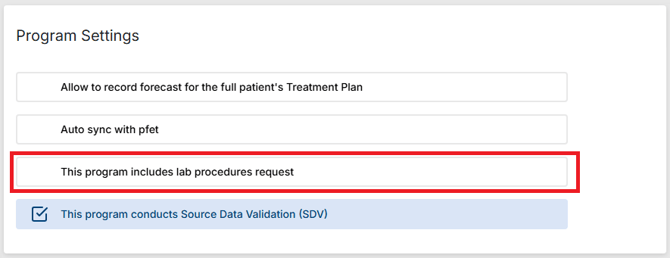
To enable this Reconciliation feature, you will first have to ensure the option has been activated in Program Settings. Your Program will not have access to Lab Procedure Reconciliation if the checkbox (shown below) is unchecked.
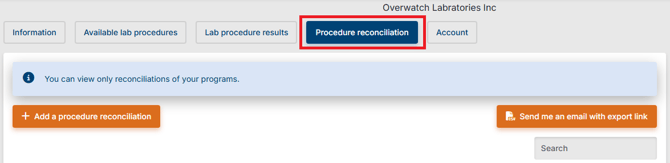
With that completed, you can now navigate to the Lab section, select the Lab you wish to view and you will see the Procedure Reconciliation Tab.
Reconciliation Process
To add a Procedure Reconciliation, start by clicking the Add a procedure reconciliation button as shown above, you'll be redirected to a page allowing you to customize your reconciliation based on your needs.
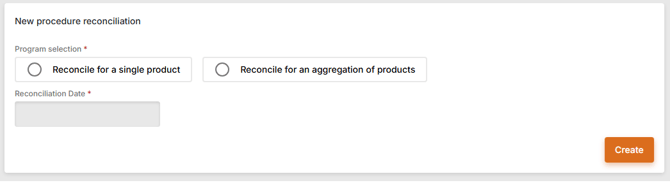
- First, start by selecting a single product or aggregate,
- Then choose the month, and year
- Then finally, choose your Program (or Program aggregate).
Once these are selected, hit the Create button to see a list of all Completed lab procedures for that specific period that will automatically appear.
Reconciliation Rules
- When selecting "Single Product" option, for Program selection, you will only see Programs that:
- You has access to, which are in the same country as the Lab
- AND which have the “This program includes lab procedures request“ check box checked in Program Settings
- When selecting "Program Aggregate" option, you will only see Program Aggregates that:
- Contain Programs in the same country as the Lab
- And are not marked for “Data Analysis”
- and have at least 1 Program with the “This program includes lab procedures request“ check box checked in Program Settings
- Only "Completed" Lab Procedures will be included in generated Lab Procedure Reconciliation lists
- Legacy Procedures (prior to September 2025) will use the Reconciliation's "Last updated date" as "Completion Date".
- "Last Updated date" can be found in Lab > Edit > Lab Procedure Requests
- New Procedures (after September 2025) will use the date at which the Procedure enters "Completion" status as the "Completion Date"
- Legacy Procedures (prior to September 2025) will use the Reconciliation's "Last updated date" as "Completion Date".
Completing your Reconciliation
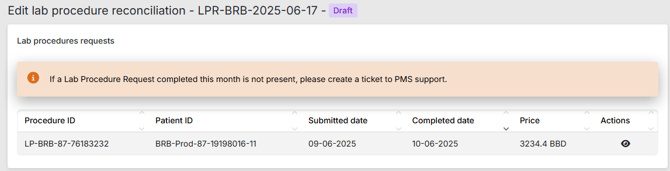
Reconciliation starts in Draft, indicating that it has been created and is ready for review. Only Program Supervisors (and upwards) can move the Reconciliation from Draft onward after reviewing the reconciliation and confirming that all Procedure requests have been captured.
 Good to know
If no Procedure is Completed in the selected month and year then “No Procedure to Display” shows in place of the Reconciliation Table
 IMPORTANT
If the completed Lab Procedures for the selected month are not displaying, it means no procedure has been recorded or synced for that period.
In such cases, please reach out to PMS Support to review and update the data.
Reconciliation Statuses
| Current Status | Next Status | Required Documents/criteria |
| Draft | Validated | Lab Confirmation once list has been confirmed with the Lab |
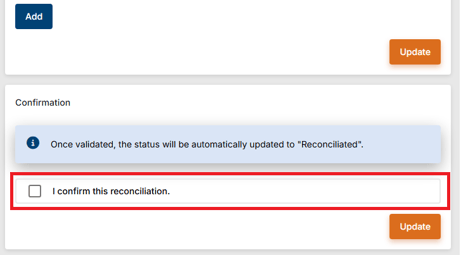
| Validated | Reconciliated | Supervisor confirms Reconciliation list by clicking the confirmation checkbox |
 |
||
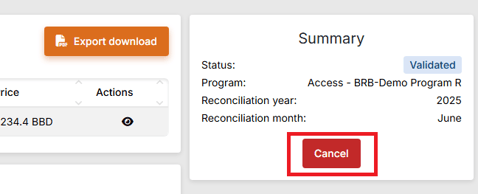
| Draft or Validated | Cancelled | Clicking the Cancel button in the aside and confirming |
|
|
||
| Reconciliated | Confirmed | Supervisor uploads document of type "Invoice" |
| Confirmed | Paid | Supervisor uploads document of type "Debit Advice" |
Dashboard
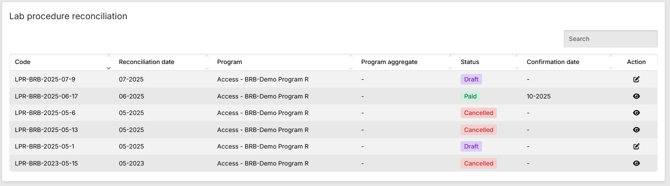
To help with Reconciliation monitoring, a table displaying all Reconciliations and their Statuses now displays at the Dashboard.
Note
this table will only display if the Program selected for viewing has the checkbox from Getting Started enabled.
 Going further
To learn more about Labs procedures, please check the Lab Procedures article.