---
title: Sending an Eligibility Letter (EL) to the Patient
description: Learn how to send ELs to Patients after the Financial Interview Step of the Patient's Program Application.
---
[Skip to content](https://support.axiosint.com/knowledge/sending-an-eligibility-letter-to-the-patient#main-content)
[More support](https://support.axiosint.com/knowledge/kb-tickets/new?hsLang=en)
[](https://support.axiosint.com/knowledge?hsLang=en)
Open main navigation
Close main navigation
- [More support](https://support.axiosint.com/knowledge/kb-tickets/new)
- [Go to axiosint.com](https://axiosint.com/)
[Go to axiosint.com](https://axiosint.com/)
Welcome to Axios Digital University.
- There are no suggestions because the search field is empty.
1. [Axios Digital University](https://support.axiosint.com/knowledge?hsLang=en)
2. [PMS User Guide](https://support.axiosint.com/knowledge/pms-user-guide?hsLang=en)
3. [Patient Management](https://support.axiosint.com/knowledge/pms-user-guide?hsLang=en#patient-management)
# Sending an Eligibility Letter (EL) to the Patient
## Learn how to send ELs to Patients after the Financial Interview Step of the Patient's Program Application.
**Table of Contents**
[Introduction](https://support.axiosint.com/knowledge/sending-an-eligibility-letter-to-the-patient#Intro)
[Prerequisites](https://support.axiosint.com/knowledge/sending-an-eligibility-letter-to-the-patient#Prereq)
[Sending the EL](https://support.axiosint.com/knowledge/sending-an-eligibility-letter-to-the-patient#Sending)
[Final Considerations](https://support.axiosint.com/knowledge/sending-an-eligibility-letter-to-the-patient#Additional)
---
### Introduction
Due to popular demand, (and a bit of convincing) sending the EL by email is now available from the Program Application page of a Patient allowing you to easily and quickly make sure the EL gets to the Patient's email of MyHealth application (if applicable).
This handy dandy button will:
1. Become available after the Financial interview step of the Program Application, specifically after the financial interview result is saved and PMS has allocated a treatment plan to the patient.
2. Be displayed at the same time as the PDF file of the EL and can be found in the aside under the Application Process Status:

[**Back to top**](https://support.axiosint.com/knowledge/sending-an-eligibility-letter-to-the-patient#Top)
---
### **Prerequisites**
A couple of things to note before we explain the actual functionality:
First, considering email is the primary location the EL is sent to, if the patient does not have an email, the button is disabled, and a tooltip indicates that the email is not available.
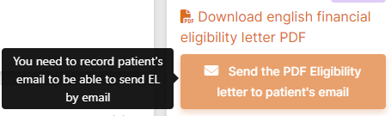
Second, as alluded to earlier, the patient has to be on the last step of the application i.e.
"Pre-Enrollment"
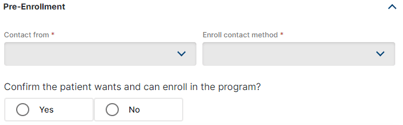
Last but not least, at this point the patient should have automatically been allocated a treatment plan. This last step is critical.
- If there is any issue, an **orange message** will display to let you know that PMS was unable to allocate a treatment plan.
- In that case, you will need to go into the *Patient \> Treatment Plan* tab and allocate the TP manually, as well as send the EL manually.
**IMPORTANT NOTE**
If you see the orange message, this is a flag that the program configuration should be reviewed.
Please speak to your program manager or reach out to [PMS.Support](mailto:pms.support@axiosint.com) for help.
[**Back to top**](https://support.axiosint.com/knowledge/sending-an-eligibility-letter-to-the-patient#Top)
---
### **Sending the EL**
Upon clicking on the button, a dialog box pops with the title “You are about to make the Eligibility Letter available to the patient”, and displays 3 mandatory checkboxes:
1. Select one or several caregiver(s) who may need to receive the Eligibility Letter.
2. “I have reviewed the Eligibility Letter and validated the Treatment Plan of the patient.\*”
1. The word Eligibility Letter links to the document.
2. The word Treatment Plan links to the TREATMENT PLAN tab.
3. “I confirm that I have reviewed and validated the patient’s email address\*: with the Patient's email address from **Patient \> Information** displayed
4. “I understand that by clicking the confirmation button below, I will make the Eligibility Letter in its current format and content available to the patient, via the above email address and in MyHealth, if applicable. "I understand that it is my responsibility to check the quality of all documents issued on behalf of Axios, and I have performed this task to the best of my ability.\*”
5. You can click **Cancel** to close the dialog box or
6. Once all checkboxes are ticked, the button to **send** is enabled, and the EL will be sent out.
[**Back to top**](https://support.axiosint.com/knowledge/sending-an-eligibility-letter-to-the-patient#Top)
---
### Final Considerations
Please be aware of the following when sending an EL to the Patient:
- The same EL can only be sent once (as a matter of fact, after the first send, the button to send is disabled).
- However, Project Leaders can send the EL as many times as they want, so if you need an EL sent more than once, please reach out to your Project Leader accordingly.
That being said, if the TP changes and the EL is therefore updated, you'll be able to resend it without issue.
**IMPORTANT NOTE**
ELs cannot be sent or resent for applications with a different Status other than New/Pending Renew regardless of User Access
[**Back to top**](https://support.axiosint.com/knowledge/sending-an-eligibility-letter-to-the-patient#Top)
---
- [PMS User Guide](https://support.axiosint.com/knowledge/pms-user-guide?hsLang=en#main-content)
- [Glossary & Definitions](https://support.axiosint.com/knowledge/pms-user-guide?hsLang=en#glossary-definitions)
- [General Knowledge](https://support.axiosint.com/knowledge/pms-user-guide?hsLang=en#general-knowledge)
- [Program Configuration](https://support.axiosint.com/knowledge/pms-user-guide?hsLang=en#program-configuration)
- [Program Management](https://support.axiosint.com/knowledge/pms-user-guide?hsLang=en#program-management)
- [Patient Management](https://support.axiosint.com/knowledge/pms-user-guide?hsLang=en#patient-management)
- [Entity Management](https://support.axiosint.com/knowledge/pms-user-guide?hsLang=en#entity-management)
- [Axios+ User Guide](https://support.axiosint.com/knowledge/axios-user-guide?hsLang=en#main-content)
- [MyPrograms](https://support.axiosint.com/knowledge/axios-user-guide?hsLang=en#myprograms)
- [MyPatients](https://support.axiosint.com/knowledge/axios-user-guide?hsLang=en#mypatients)
- [MyHealth](https://support.axiosint.com/knowledge/axios-user-guide?hsLang=en#myhealth)
- [MyHealth (v2)](https://support.axiosint.com/knowledge/axios-user-guide?hsLang=en#myhealth-v2)
- [MyPharmacy (Mobile App)](https://support.axiosint.com/knowledge/axios-user-guide?hsLang=en#mypharmacy-mobile-app)
- [MyPharmacy (Desktop App)](https://support.axiosint.com/knowledge/axios-user-guide?hsLang=en#mypharmacy-desktop-app)
- [Digital University Sessions](https://support.axiosint.com/knowledge/digital-university-sessions?hsLang=en#main-content)
- [Season 1](https://support.axiosint.com/knowledge/digital-university-sessions?hsLang=en#season-1)
- [Season 2](https://support.axiosint.com/knowledge/digital-university-sessions?hsLang=en#season-2)
- [Season 3](https://support.axiosint.com/knowledge/digital-university-sessions?hsLang=en#season-3)
- [Season 4](https://support.axiosint.com/knowledge/digital-university-sessions?hsLang=en#season-4)
- [Season 5](https://support.axiosint.com/knowledge/digital-university-sessions?hsLang=en#season-5)
- [Season 6](https://support.axiosint.com/knowledge/digital-university-sessions?hsLang=en#season-6)
- [Season 7](https://support.axiosint.com/knowledge/digital-university-sessions?hsLang=en#season-7)
- [FAQ PMS](https://support.axiosint.com/knowledge/faq-pms?hsLang=en#main-content)
- [Access Management](https://support.axiosint.com/knowledge/faq-pms?hsLang=en#access-management)
- [Data, Statistics and Reporting](https://support.axiosint.com/knowledge/faq-pms?hsLang=en#data-statistics-and-reporting)
- [Entity Management](https://support.axiosint.com/knowledge/faq-pms?hsLang=en#entity-management)
- [Patient Management](https://support.axiosint.com/knowledge/faq-pms?hsLang=en#patient-management)
- [Program Management](https://support.axiosint.com/knowledge/faq-pms?hsLang=en#program-management)
- [Treatment Management](https://support.axiosint.com/knowledge/faq-pms?hsLang=en#treatment-management)
- [FAQ Axios+](https://support.axiosint.com/knowledge/faq-axios?hsLang=en#main-content)
- [General](https://support.axiosint.com/knowledge/faq-axios?hsLang=en#general)
- [General - Account Creation and Management](https://support.axiosint.com/knowledge/faq-axios?hsLang=en#general-account-creation-and-management)
- [General - App Installation and Features](https://support.axiosint.com/knowledge/faq-axios?hsLang=en#general-app-installation-and-features)
- [MyHealth](https://support.axiosint.com/knowledge/faq-axios?hsLang=en#myhealth)
- [MyHealth (Adherence)](https://support.axiosint.com/knowledge/faq-axios?hsLang=en#myhealth-adherence)
- [MyPatients](https://support.axiosint.com/knowledge/faq-axios?hsLang=en#mypatients)
- [MyPharmacy](https://support.axiosint.com/knowledge/faq-axios?hsLang=en#mypharmacy)
- [MyPrograms](https://support.axiosint.com/knowledge/faq-axios?hsLang=en#myprograms)
- [FAQ Digital Knowledge](https://support.axiosint.com/knowledge/faq-digital-knowledge?hsLang=en#main-content)
- [Technical Knowledge](https://support.axiosint.com/knowledge/faq-digital-knowledge?hsLang=en#technical-knowledge)
- [Security Best Practices](https://support.axiosint.com/knowledge/faq-digital-knowledge?hsLang=en#security-best-practices)
- [Internal Processes](https://support.axiosint.com/knowledge/internal-processes?hsLang=en#main-content)
- [Process Sheet](https://support.axiosint.com/knowledge/internal-processes?hsLang=en#process-sheet)
- [Technical Documentation](https://support.axiosint.com/knowledge/internal-processes?hsLang=en#technical-documentation)
- [Generative AI](https://support.axiosint.com/knowledge/internal-processes?hsLang=en#generative-ai)
[](http://axiosint.com)
Axios Digital University
Copyright © 2026, Axios International
```json
{
"@context" : "https://schema.org",
"@type" : "VideoObject",
"contentUrl" : "https://26529813.fs1.hubspotusercontent-eu1.net/hubfs/26529813/EL-send.webm",
"dateModified" : "2023-10-10T14:34:14.143Z",
"duration" : "PT30.331S",
"height" : 564,
"name" : "EL-send",
"thumbnailUrl" : "https://26529813.fs1.hubspotusercontent-eu1.net/hubfs/26529813/EL-send.webm/medium.jpg",
"uploadDate" : "2023-10-10T14:33:54.196Z",
"width" : 1251
}
```