
Table of Contents
MedPacks
A MedPack identifies the total amount of medications a Patient will collect per cycle and per financial scheme, regardless of the actual number of boxes.
For example, a patient could be prescribed 4 vials for their next cycle, 1 paid, and 1 FOC. This cycle will have 2 MedPacks, representing each scheme.
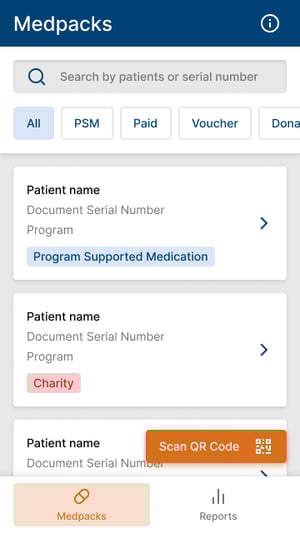
Pharmacists can view all upcoming MedPacks on their landing screen.
 Good to Know
MedPacks can be sorted by acquisition method (PSM/FOC, Paid, Voucher or Donation)
MedPack Details
Should patients come in with their digital MRL on their phone, pharmacists can press the Scan QR Code button and directly scan the patient’s phone. All physical MRLs issued by Axios through the PMS also incorporate the QR code to allow for the pharmacist to use MyPharmacy.
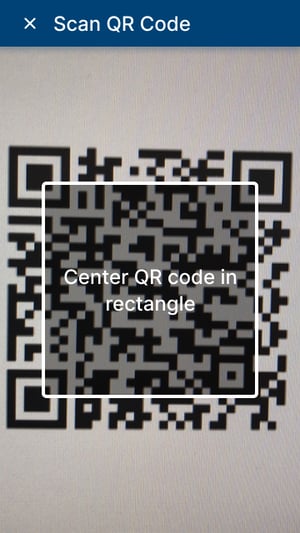
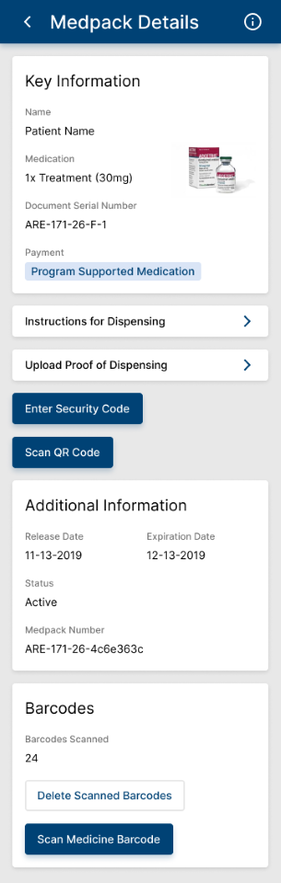
This will redirect them to the MedPack Details of the scanned MRL where they can view all relevant Patient and treatment information. Alternatively, they may simply tap on the MedPack whose details they wish to view.
Additional Information
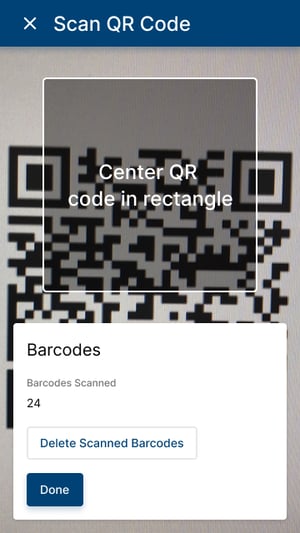
An innovative logistics functionality has also been added by Axios: Pharmacists can scan the barcode present on each medication box.
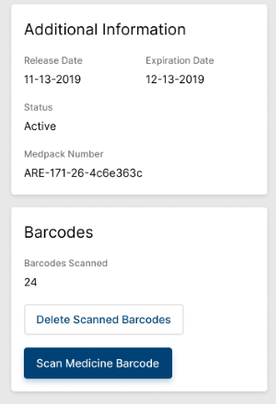
By scanning each unit in the MedPack, it also allows monitoring of which exact unit was distributed.
This would then provide additional information on logistics and close the loop from manufacturing to administration.
Dispensing
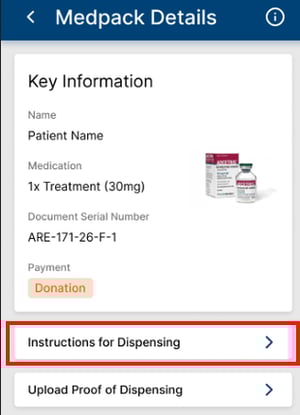
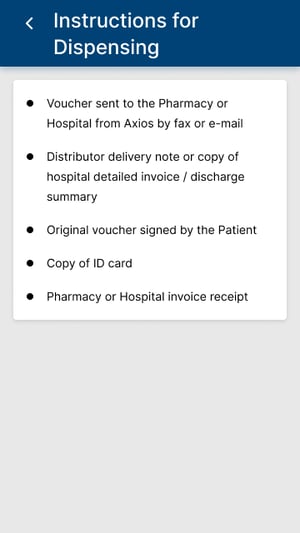
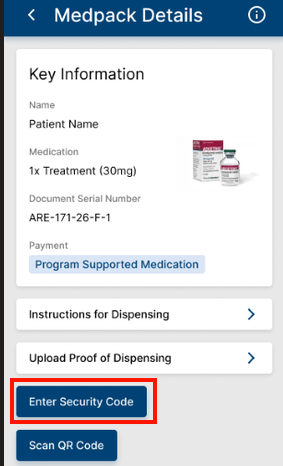
Prior to dispensing a MedPack, pharmacists can view instructions tailored for them and per program to dispense the medication by clicking the Instructions for Dispensing button on the MedPack Details Screen. Instructions can include expiry dates, necessary documents or other conditions for dispensing.
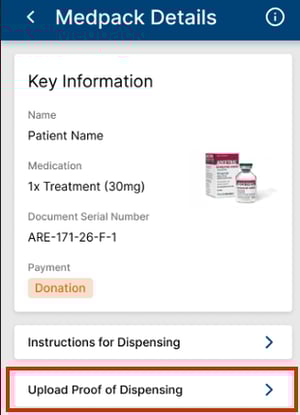
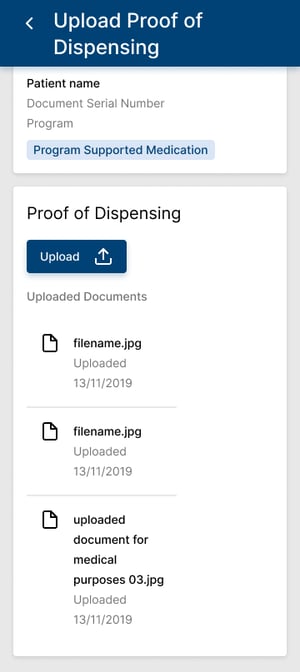
Pharmacists can also upload proof of dispensing for the MedPack by clicking the corresponding button on the MedPack Details screen. Proof of dispensing can vary depending on the program.
Good to Know
Proofs of dispensing can be as standalone or in combination with documents uploaded by the patients through MyHealth.
The upload functionality is the same across the applications. Permissions prompts will occur on first upload. Pharmacists can review the photos before submitting, and retake if needed. All uploaded pictures are received by the program staff and directly in the patient's corresponding MedPack.
Upon completing the upload, the pharmacist is notified in the application that the upload is successful. Should the upload fail for any connectivity or system reason, pharmacists are also notified and encouraged to try again.
An added security measure is now in place on all Axios MRLs. Each letter has a unique security code. Once all proof of dispensing has been uploaded, pharmacists can enter this security code in the MedPack details and immediately validate dispensing.
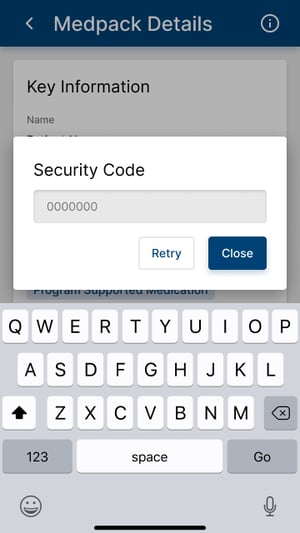
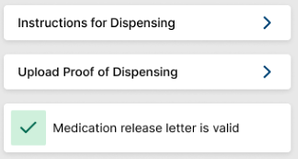
Once the security code is entered successfully, the MedPack is shown as validated from the pharmacist side. Axios staff will then verify all documents and validate the MedPack, eventually completing a cycle in the patient’s treatment plan.
 Going Further
Learn more about the MyPharmacy mobile application by checking our dedicated articles: