---
title: Pharmacy Product Delivery & Stock Out
description: Manage the stocks and deliveries for a pharmacy
---
[Skip to content](https://support.axiosint.com/knowledge/product-delivery-stock-out#main-content)
[More support](https://support.axiosint.com/knowledge/kb-tickets/new?hsLang=en)
[](https://support.axiosint.com/knowledge?hsLang=en)
Open main navigation
Close main navigation
- [More support](https://support.axiosint.com/knowledge/kb-tickets/new)
- [Go to axiosint.com](https://axiosint.com/)
[Go to axiosint.com](https://axiosint.com/)
Welcome to Axios Digital University.
- There are no suggestions because the search field is empty.
1. [Axios Digital University](https://support.axiosint.com/knowledge?hsLang=en)
2. [PMS User Guide](https://support.axiosint.com/knowledge/pms-user-guide?hsLang=en)
3. [Entity Management](https://support.axiosint.com/knowledge/pms-user-guide?hsLang=en#entity-management)
# Pharmacy Product Delivery & Stock Out
## Manage the stock and deliveries for a pharmacy
#### Table of Contents
[Product Delivery](https://support.axiosint.com/knowledge/product-delivery-stock-out#product-delivery)
[Stock Out](https://support.axiosint.com/knowledge/product-delivery-stock-out#stock-out)
---
### Product delivery
These are deliveries of medicine between the distributor and the pharmacies hospitals. They are entered per medicine and should include the exact number delivered to the pharmacies at a specific date.
#### **Adding a product delivery**
1. Navigate to add a **new product delivery** (plus icon)
- Add **Distributor** (optional but encouraged)
- Mandatory to move from Draft to Approved
- Distributor must be in the same country as the Pharmacy to show up in dropdown
- Add **Patient** (optional but encouraged as this ties the delivery to a specific patient)
1. The patient must be Active with the current pharmacy set as their default to show up in the dropdown
2. Can select specific MP
3. If patient is not selected, the delivery can be treated as a bulk order
4. If patient selected:
1. MedPacks should be selected in specific order as stock will be ordered according to MedPack arrangement. MedPacks need to be prepared in advance, only Active MedPacks with a set given date and composition will show in the dropdown
2. Patient care team will have to prepare MPs, medication support team will schedule delivery
3. Patient care team will track status of delivery
2. **Dates and Composition**
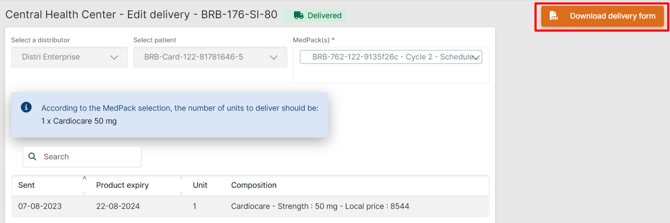
- Add sent date, product expiry date, unit count and the product. If MedPack(s) have been selected, a blue Information note pops up under the “Add” buttons displaying the expected Composition.
- Once the product is selected, you can see the current forecast for the product, according to the composition set for each patient. This reflects data entered for each patient under the Patient \> Medicine tab.

#### Approve and validate the delivery
1\. Upload **Supporting Documents**
- - Client Approval
- Delivery note
- Release Letter
- Signed Delivery Form
2\. **Delivery Instructions**
- - Add **Delivery Instructions** following the provided format
- **Ship-to number** represents the branch of the pharmacy the delivery will be sent to
- **Ship-to Address** represents the address of the pharmacy that will be receiving the delivery.
3\. To move delivery to **Delivered status**
- - You must upload the "**Signed Delivery form**".
- Click the “**Products have been received by the pharmacy**” checkbox
**IMPORTANT**
Only users with Supervisor access can update delivery to Delivered status. No further changes can be made once a Delivery enters this Status.
Additionally, for items with the "Delivered" Status, you can add or remove any outstanding attachments. However, any attachments added before the delivery moves to this Status cannot be removed/edited.
#### **Edit a product delivery**
- If **Draft** status
- Everything in Delivery Details can be edited
- Delivery can be moved to Approved or Trash
- After you put this delivery to Trash you will not be able to access it anymore
- If **Approved** Status
- New documents can be added and removed and are now completely Mandatory. However, documents added before the delivery moves to this Status cannot be edited.
- - Distributor, Patient, and MedPack fields are view only
- The expiry date can be changed
- A product **delivery form** can be downloaded
**Cancel a delivery**
- Only available to deliveries with status Approved
A delivery is marked with this status when it cannot be completed, and a valid reason is provided.
- Rescheduled or edited deliveries are not to be cancelled.
- Draft deliveries can be set to Trash, not Cancelled
**[Back to Top](https://support.axiosint.com/knowledge/product-delivery-stock-out#top)**
---
### Stock out
Stock management option that allows to add a product stock out to adjust the stocks in case of expired products products breakage (e.g. natural disaster).
**IMPORTANT**
It has to be documented with Pharmacy
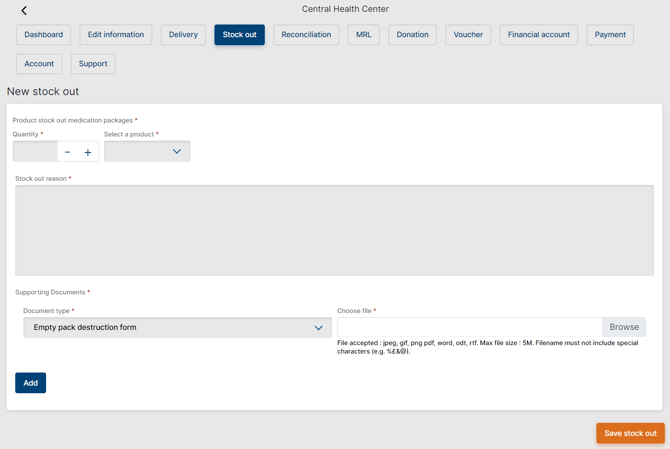
Add the stock out reason in the dedicated field and upload documents. Remember that what is set in the PMS is showing also in the *My*Referral (pharmacy) desktop app.
[**Back to Top**](https://support.axiosint.com/knowledge/product-delivery-stock-out#top)
---
**Going Further**
Learn more about [Pharmacy Management](https://support.axiosint.com/knowledge/managing-a-pharmacy?hsLang=en), [Reconciliation & payments](https://support.axiosint.com/knowledge/reconciliation-payments?hsLang=en) and [Product Delivery Process](https://support.axiosint.com/knowledge/product-delivery-process?hsLang=en) in our dedicated articles.
- [PMS User Guide](https://support.axiosint.com/knowledge/pms-user-guide?hsLang=en#main-content)
- [Glossary & Definitions](https://support.axiosint.com/knowledge/pms-user-guide?hsLang=en#glossary-definitions)
- [General Knowledge](https://support.axiosint.com/knowledge/pms-user-guide?hsLang=en#general-knowledge)
- [Program Configuration](https://support.axiosint.com/knowledge/pms-user-guide?hsLang=en#program-configuration)
- [Program Management](https://support.axiosint.com/knowledge/pms-user-guide?hsLang=en#program-management)
- [Patient Management](https://support.axiosint.com/knowledge/pms-user-guide?hsLang=en#patient-management)
- [Entity Management](https://support.axiosint.com/knowledge/pms-user-guide?hsLang=en#entity-management)
- [Axios+ User Guide](https://support.axiosint.com/knowledge/axios-user-guide?hsLang=en#main-content)
- [MyPrograms](https://support.axiosint.com/knowledge/axios-user-guide?hsLang=en#myprograms)
- [MyPatients](https://support.axiosint.com/knowledge/axios-user-guide?hsLang=en#mypatients)
- [MyHealth](https://support.axiosint.com/knowledge/axios-user-guide?hsLang=en#myhealth)
- [MyHealth (v2)](https://support.axiosint.com/knowledge/axios-user-guide?hsLang=en#myhealth-v2)
- [MyPharmacy (Mobile App)](https://support.axiosint.com/knowledge/axios-user-guide?hsLang=en#mypharmacy-mobile-app)
- [MyPharmacy (Desktop App)](https://support.axiosint.com/knowledge/axios-user-guide?hsLang=en#mypharmacy-desktop-app)
- [Digital University Sessions](https://support.axiosint.com/knowledge/digital-university-sessions?hsLang=en#main-content)
- [Season 1](https://support.axiosint.com/knowledge/digital-university-sessions?hsLang=en#season-1)
- [Season 2](https://support.axiosint.com/knowledge/digital-university-sessions?hsLang=en#season-2)
- [Season 3](https://support.axiosint.com/knowledge/digital-university-sessions?hsLang=en#season-3)
- [Season 4](https://support.axiosint.com/knowledge/digital-university-sessions?hsLang=en#season-4)
- [Season 5](https://support.axiosint.com/knowledge/digital-university-sessions?hsLang=en#season-5)
- [Season 6](https://support.axiosint.com/knowledge/digital-university-sessions?hsLang=en#season-6)
- [Season 7](https://support.axiosint.com/knowledge/digital-university-sessions?hsLang=en#season-7)
- [FAQ PMS](https://support.axiosint.com/knowledge/faq-pms?hsLang=en#main-content)
- [Access Management](https://support.axiosint.com/knowledge/faq-pms?hsLang=en#access-management)
- [Data, Statistics and Reporting](https://support.axiosint.com/knowledge/faq-pms?hsLang=en#data-statistics-and-reporting)
- [Entity Management](https://support.axiosint.com/knowledge/faq-pms?hsLang=en#entity-management)
- [Patient Management](https://support.axiosint.com/knowledge/faq-pms?hsLang=en#patient-management)
- [Program Management](https://support.axiosint.com/knowledge/faq-pms?hsLang=en#program-management)
- [Treatment Management](https://support.axiosint.com/knowledge/faq-pms?hsLang=en#treatment-management)
- [FAQ Axios+](https://support.axiosint.com/knowledge/faq-axios?hsLang=en#main-content)
- [General](https://support.axiosint.com/knowledge/faq-axios?hsLang=en#general)
- [General - Account Creation and Management](https://support.axiosint.com/knowledge/faq-axios?hsLang=en#general-account-creation-and-management)
- [General - App Installation and Features](https://support.axiosint.com/knowledge/faq-axios?hsLang=en#general-app-installation-and-features)
- [MyHealth](https://support.axiosint.com/knowledge/faq-axios?hsLang=en#myhealth)
- [MyHealth (Adherence)](https://support.axiosint.com/knowledge/faq-axios?hsLang=en#myhealth-adherence)
- [MyPatients](https://support.axiosint.com/knowledge/faq-axios?hsLang=en#mypatients)
- [MyPharmacy](https://support.axiosint.com/knowledge/faq-axios?hsLang=en#mypharmacy)
- [MyPrograms](https://support.axiosint.com/knowledge/faq-axios?hsLang=en#myprograms)
- [FAQ Digital Knowledge](https://support.axiosint.com/knowledge/faq-digital-knowledge?hsLang=en#main-content)
- [Technical Knowledge](https://support.axiosint.com/knowledge/faq-digital-knowledge?hsLang=en#technical-knowledge)
- [Security Best Practices](https://support.axiosint.com/knowledge/faq-digital-knowledge?hsLang=en#security-best-practices)
- [Internal Processes](https://support.axiosint.com/knowledge/internal-processes?hsLang=en#main-content)
- [Process Sheet](https://support.axiosint.com/knowledge/internal-processes?hsLang=en#process-sheet)
- [Technical Documentation](https://support.axiosint.com/knowledge/internal-processes?hsLang=en#technical-documentation)
- [Generative AI](https://support.axiosint.com/knowledge/internal-processes?hsLang=en#generative-ai)
[](http://axiosint.com)
Axios Digital University
Copyright © 2026, Axios International
```json
{
"@context" : "https://schema.org",
"@type" : "VideoObject",
"contentUrl" : "https://26529813.fs1.hubspotusercontent-eu1.net/hubfs/26529813/pharmacy-delivery.webm",
"dateModified" : "2023-09-14T12:14:03.753Z",
"duration" : "PT55.244S",
"height" : 528,
"name" : "pharmacy-delivery",
"thumbnailUrl" : "https://26529813.fs1.hubspotusercontent-eu1.net/hubfs/26529813/pharmacy-delivery.webm/medium.jpg",
"uploadDate" : "2023-08-07T13:53:01.249Z",
"width" : 1240
}
```
```json
{
"@context" : "https://schema.org",
"@type" : "VideoObject",
"contentUrl" : "https://26529813.fs1.hubspotusercontent-eu1.net/hubfs/26529813/pharmacy-delivery-02.webm",
"dateModified" : "2023-09-14T12:14:02.829Z",
"duration" : "PT39.866S",
"height" : 535,
"name" : "pharmacy-delivery-02",
"thumbnailUrl" : "https://26529813.fs1.hubspotusercontent-eu1.net/hubfs/26529813/pharmacy-delivery-02.webm/medium.jpg",
"uploadDate" : "2023-08-07T13:53:00.637Z",
"width" : 1243
}
```