
Table of Contents
Reconciliation
Reconciliations allow you to select vouchers and combine them into a clearance form or invoice to calculate the payment to make to the pharmacy. Only vouchers not already reconciliated will display. At any point in time, the difference of units between delivery notes and reconciliations should match the stocks left at the pharmacy. Adding a reconciliation can be for a single product or an aggregation of products
-
Single product : 1 product only in 1 country only
-
Aggregate of products : combination of multiple products under one umbrella (one or several products, for one or several countries) . E.g. Sawiyan in the UAE is a combination of products. Advantage of product aggregation is that you will be able to reconcile all products at the same time and gain some time.
 Good to know
Interested in configuring an aggregation of products? Reach out to PMS Support to configure the aggregation.
Reconciliation Process
- Go to the Pharmacy > Reconciliation tab and select "Add a Reconciliation"
-
A list of all MRLs/vouchers not yet reconciled is displayed. Select each MRLs/vouchers that you want to reconcile. They will then appear in a list.
-
Upload the relevant documents provided by the Pharmacy for reconciliation.
-
The Clearance Code is provided by the Pharmacy. It is not mandatory but highly suggested as it will be easier to link to the Pharmacy using the code.
Reconciliation validation
- After creation, your reconciliation appears as draft and needs to be validated.
- Once a Draft is validated, it cannot be edited anymore.
MyPharmacy Reconciliation
Moving from Draft to Awaiting Pharmacy Confirmation
For Pharmacies with an Active MyPharmacy account, you can now send a reconciliation that is in Draft status to the pharmacy and get their confirmation. To do this, simply scroll down while in a Draft reconciliation until you find the "Reconciliation status update section" and click the request button.

After confirming, you'll notice that your reconciliation is now under the status "Awaiting Pharmacy Confirmation". To explain this further, we'll need to jump into MyPharmacy.
Moving from Awaiting Pharmacy Confirmation to Awaiting Axios Review
In MyPharmacy, we've moved the Reconciliation section to the main page so it's easier to access. Additionally, for reconcilations sent to the Pharmacy to confirm, there's a new section just for that. Pharmacies will simply have to navigate to the Reconciliation section of MyPharmacy, locate the reconciliation they wish to view and select it as shown below.
From here, the Pharmacy can select from available MedPacks, specify their issues with the MedPack and submit their proposed change. When the Pharmacy submits a change, the status wiil now be "Awaiting Axios review" you will be notified via email and it will show on PMS.

Moving from Awaiting Axios Review to Awaiting Pharmacy Confirmation/Pharmacy Validated
Jumping back to the PMS, your reconciliation will now display the changes requested by the pharmacy. So you simply make the changes necessary and send the reconcilaition back to the Pharmacy to reconfirm.
If there are no further changes, the pharmacy will confirm and the reconciliation will be marked as "Pharmacy Validated" on MyPharmacy.
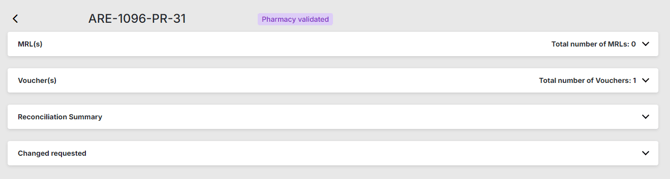
and on PMS

At this point you can safely move the reconcilation to Validated status and carry out the reconcilation process as per usual.
Payment
Based on reconciliations, payments must keep track of all checks or transfer made to the pharmacies to complete payments on outstanding vouchers.
-
It is only possible to pay a product that has been already reconciled.
-
We only pay once: 1 reconciliation can only appear in 1 payment, but 1 payment can contain several reconciliations
Creating a new payment
-
Select the program and the reconciliation.
-
Payment is pre-filled but can be edited.
- Once saved, the payment is recorded as Draft.
Payment Confirmation
-
Upload the signed clearance form and click "Confirm" to change status from Draft to Confirmed.
- Enter the date of payment reception and tick the "Pharmacy has received the payment" checkbox to change the status from "Confirmed" to "Closed".
- Once closed, a payment cannot be edited anymore.
 Going Further
Learn more about Pharmacy Management, Product Delivery & Stock Out and Product Delivery Process in our dedicated articles.